Can you build a DIY version of the Elgato Stream Deck? Many people could tell this is what I was building up to. I think we are getting a lot closer.
This, of course,
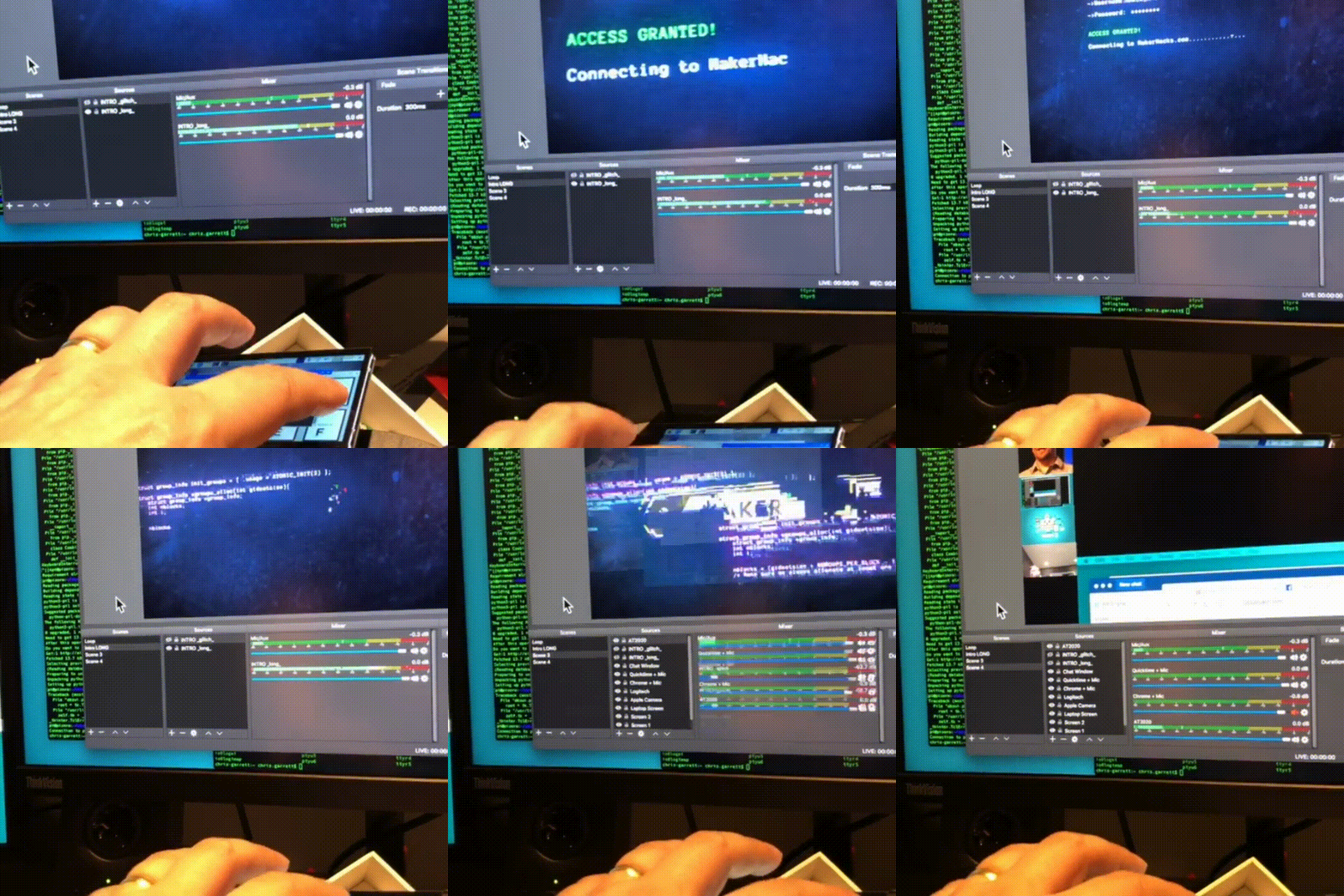
The way it works is we build a graphical button interface with Python. When a button is pressed we send an assigned keyboard combination over USB to the host machine, so the machine responds as if a keypress has been activated (because in a way, it has).
Whatever software is running, responds accordingly. That could be OBS, a game, Photoshop, whatever your macro keyboard combination heart desires.
The Hardware
This is all made possible by, naturally, the Pi Zero, plus the Pimoroni Hyperpixel 4 touch screen for the Raspberry Pi. It is high resolution and has a high frame rate. Now, of course, you could go with a cheaper
Now there is a downside of this screen – it uses ALL the pins. No biggy for this, seeing as I only need the screen and USB, but something to take into account.
The Code
For this project I used tkinter, as I felt it was the most direct for what I needed, and it only needs to run on my mac (for development and testing) and on the Pi Zero (Linux) for actual execution.
You could easily do this in Qt5 or whatever your GUI toolkit of choice, heck you could probably do it in Pygame, but this works for what I need.
As before, the keyboard signals are sent using codes to /dev/hidg0 as if we are writing a file. This automagically sends along the codes to the host computer.
Follow the previous article linked resources for how to set your Pi Zero up for this to work.
When a button is pressed we call our button_click function which checks against our pre-determined list and fires off the keypress combinations. For now I am using a-e, but in actual usage I will find some keyboard combinations that don’t conflict with normal usage.
My buttons are aligned in a grid, which is all conveniently handled by the TK features. I just need to load in six images and create my six buttons (I will also have start and stop buttons for streaming most likely, my high resolution touch screen will accommodate more).
# modules
import time
import tkinter as tk
from PIL import Image, ImageTk


# initialise tk
root = tk.Tk()


# function to send the key data
def write_report(report):
    with open('/dev/hidg0', 'rb+') as fd:
        fd.write(report.encode())


# click event
def button_click(caller):
    print("Button: {} was clicked, sending keypress".format(caller))

    if "button1" == caller:
        write_report("4")
    elif "button2" == caller:
        write_report("5")
    elif "button3" == caller:
        write_report("6")
    elif "button4" == caller:
        write_report("7")
    elif "button5" == caller:
        write_report("10")
    else:
        write_report("11")

    time.sleep(0.2)
    write_report("")


# load icons
image = Image.open("a.png")
photoa = ImageTk.PhotoImage(image)

image = Image.open("b.png")
photob = ImageTk.PhotoImage(image)

image = Image.open("c.png")
photoc = ImageTk.PhotoImage(image)

image = Image.open("d.png")
photod = ImageTk.PhotoImage(image)

image = Image.open("e.png")
photoe = ImageTk.PhotoImage(image)

image = Image.open("f.png")
photof = ImageTk.PhotoImage(image)


# add buttons
button1 = tk.Button(root, compound=tk.CENTER, image=photoa, text="Button 1", command=lambda: button_click('button1'))
button1.grid(row=0, column=0)

button2 = tk.Button(root, compound=tk.CENTER, image=photob, text="Button 2", command=lambda: button_click('button2'))
button2.grid(row=0, column=1)

button3 = tk.Button(root, compound=tk.CENTER, image=photoc, text="Button 3", command=lambda: button_click('button3'))
button3.grid(row=0, column=2)

button4 = tk.Button(root, compound=tk.CENTER, image=photod, text="Button 4", command=lambda: button_click('button4'))
button4.grid(row=1, column=0)

button5 = tk.Button(root, compound=tk.CENTER, image=photoe, text="Button 5", command=lambda: button_click('button5'))
button5.grid(row=1, column=1)

button6 = tk.Button(root, compound=tk.CENTER, image=photof, text="Button 6", command=lambda: button_click('button6'))
button6.grid(row=1, column=2)


# start the event loop
root.mainloop()

 Detect (and list) Raspberry Pi and other boards on your network